Поиск по этому блогу

Показаны сообщения с ярлыком RDP. Показать все сообщения

среда, 10 августа 2011 г.

RDP подключение из консоли, решаем проблему с раскладкой и глубиной цвета(Color Depth).


Никаких проблем с раксладкой!

$ aptitude install freerdp-x11 libfreerdp-plugins-standard
$ xfreerdp -g 1024x768 -z -k  0x409 --plugin cliprdr 192.168.0.1
или
$ xfreerdp -g 1024x768 -z -k 0x409 --plugin cliprdr --plugin rdpdr --data disk:host:/  -- 192.168.0.1
и всё работает.
Бесшовные окна xfreerdp не поддерживает. 
GUI для freerdp - remmina

Теперь решаем проблему с глубиной цвета (по умолчанию только 16 бит:)

rdesktop on Linux will give this warning message when connecting to a Windows machine which has not been configured for 24-bit color RDP connections. This has, amongst other things, the effect of showing some horrible, jaggy desktop icons. See the pictures on the right for reference.
On Vista, Windows 7 and later (?), the solution is simple: Use 32-bit colors (-a 32)
On XP, which doesn't support 32-bit colors, it gets a little more complicated. XP does support 24-bit connections, but this mode is disabled by default because of bandwidth concerns and bad choices.
To fix this problem on XP (nothing needs changing on the Linux or Windows client) you need to access the Local Machine Group Policy editor.
If you're lucky, going to Start -> Run -> "gpedit.msc" will work for you. Type "gpedit.msc" without the quotes (and click "Run").
If that does not open the group policy editor, this is the long way around:
  • Start -> Run and type in "mmc"
  • Add the Group Policy snap-in by going to File -> Add/Remove Snap-in -> Add -> Group Policy Object Editor -> Add -> Finish (Local Machine) -> Close -> Ok
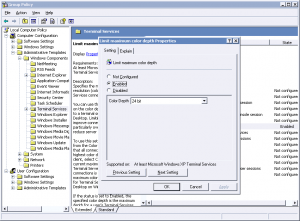
In the Group Policy Editor, navigate to Local Computer Policy -> Computer Configuration -> Administrative Templates -> Windows Components -> Terminal Services, and double-click on the 'Limit maximum Color Depth' object.
Set the item to "Enabled" and set "Color Depth" to "24 bit"
Click OK, then log in with the remote client. If the changes haven't been applied, reboot the server.
Rejoice with your new, shiny desktop icons and full 24-bit desktop.

понедельник, 8 августа 2011 г.

RDP client

качаем патченый rdesktop отсюда

x86_64 : http://sys-admin.org/files1/rdesktop/rdesktop_1.6.0-alt1_amd64.deb
i386 : http://sys-admin.org/files1/rdesktop/rdesktop_1.6.0-alt1_i386.deb

нажимаем
sudo dpkg -r rdesktop
sudo dpkg -i rdesktop_1.6.0-alt1*
cd /usr/lib
sudo ln -s libcrypto.so.0.9.8 libcrypto.so.6

все
подключаемся так
rdesktop -5 -z  -y -u пользователь -p пароль -g разрешениеxэкрана IP_удаленного_компьютера
главная опция "-y" - она говорит использовать raw клавиатуру
rdesktop -g 1024x768 -u admin -p pass [IP-адрес удаленной машины]
 
 
-u  – учетная запись для атентификации.

-d  – домен.

-p
 – пароль, чтобы другие не могли его подсвотреть лучше использовать -p – в этом случае rdesktop запросит пароль при запуске.

-k  – эмулируемая раскладка клавиатуры (по умолчанию  en-us).

-g  – разрешение экрана, можно указать в процентах от всего экрана.

-f – полноэкранный режим (можно переключиться с помощью комбинации клавиш Ctrl-Alt-Enter).

-s  – начальная оболочка пользователя (вместо Explorer).

-c  – начальный рабочий каталог пользователя.

-0 – глубина цвета – 8 или 16 бит, 16-битный цвет доступен только для 
RDP 5-й версии Windows XP/2003, 32 битный не поддерживаетс.

-4 – использовать RDP версии 4.

-5 – использовать RDP версии 5 (по умолчанию).

-T  – заголовок окна.

-S  – режим одного приложения, например запускается одно развернутоена весь экран приложение (с опцией -s).

-z – активация сжатия передаваемых данных, актуально для медленных соединени 

пятница, 1 апреля 2011 г.

Remmina RDP, VNC, NX, XDMCP, SSH, Telepathy клиент

  • A pure GTK+ 2.0 application!
  • Maintain a list of connection profiles, organized by groups
  • Make quick connections by directly putting in the server address
  • Remote desktops with higher resolutions are scrollable/scalable in both window and fullscreen mode
  • Viewport fullscreen mode: remote desktop automatically scrolls when the mouse moves over the screen edge.
  • Floating toolbar in fullscreen mode, allows you to switch between modes, toggle keyboard grabbing, minimize, etc.
  • Tabbed interface, optionally managed by groups
  • Tray icon, allows you to quickly access configured connection profiles
в общем так:

sudo add-apt-repository ppa:llyzs/ppa
sudo aptitude install remmina 

если что - то :

  • Maverick: deb http://ppa.launchpad.net/llyzs/ppa/ubuntu maverick main
  • Lucid: deb http://ppa.launchpad.net/llyzs/ppa/ubuntu lucid main
  • Karmic: deb http://ppa.launchpad.net/llyzs/ppa/ubuntu karmic main
  • Jaunty: deb http://ppa.launchpad.net/llyzs/ppa/ubuntu jaunty main
Then import the PPA key:
$ sudo apt-key adv --keyserver keyserver.ubuntu.com --recv-keys 5A0FA8F1
sudo aptitude install remmina